
Colors/Font Controls
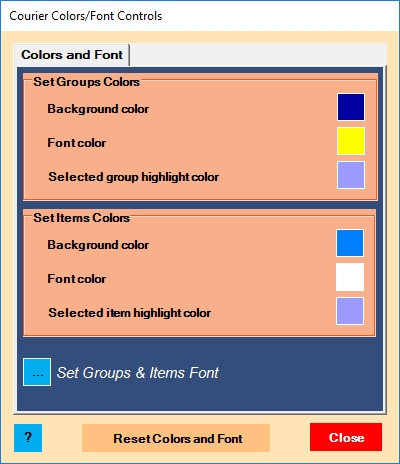
Here’s where you can do any of the following:
- change Groups panel background color
- change Groups panel font color
- change Groups panel selected highlight color
- change Items panel background color
- change Items panel font color
- change Items panel selected highlight color
- change Groups/Items panel font
- reset all of the above to default settings
Change Groups Panel Background Color:
Click the groups background color box to open the color selector.
Change Groups Panel Font Color:
Click the groups font color box to open the color selector.
Change Groups Panel Highlight Color:
Click the groups selected group highlight color box to open the color selector.
Change Items Panel Background Color:
Click the items background color box to open the color selector.
Change Items Panel Font Color:
Click the items font color box to open the color selector.
Change Items Panel Highlight Color:
Click the items selected item highlight color box to open the color selector.
Change Groups/Items Font:
Click the groups/items font box to open the font selector.
See below for a list of fonts common to most PCs
Reset Colors and Font:
Click the orange button to reset all colors and fonts to default settings.
List of Recommended Fonts:
The following fonts are available on most Windows and MAC PCs:
| Font | Style |
| Arial | sans-serif |
| Arial Black | sans-serif |
| Impact | sans-serif |
| Lucida Sans Unicode | sans-serif |
| MS Sans Serif | sans-serif |
| Tahoma | sans-serif |
| Trebuchet MS | sans-serif |
| Verdana | sans-serif |
| Georgia | serif |
| MS Serif | serif |
| Palatino Linotype | serif |
| Times New Roman | serif |
| Comic Sans MS | cursive |
| Courier New | monospace |
| Lucida Console | monospace |
Click here for the knowledgebase index.